How visual verification works in our agentic coding workflow. Our coding agents screenshot and record every UI change, check the captures themselves and put the evidence in the pull request.
Most of the code we write at Pixelhop now starts life in a coding agent, usually Claude Code. The agents are very good, and they're also very happy to tell you a UI change is done without ever having looked at it.
The tests pass, the branch is pushed and the pull request has a lovely summary. Then you run it locally and the button is hiding behind the keyboard on mobile.
The change that has improved our agentic coding workflow most this year is making the agent prove every visible change with screenshots or a screen recording. We review agent work much faster, because the evidence arrives with the pull request. The work itself also gets better, because an agent that has to capture its own screens has to look at them, and it catches a lot of its own mistakes before we ever see them.
I'd go as far as saying visual verification makes agent output a million times better. I haven't measured that, but it's how it feels day to day.
Below is the whole workflow: the house rule, how the agent captures and checks its work, where the evidence goes and how we send notes back to the agent. At the end there's a snippet you can drop into your own CLAUDE.md or AGENTS.md.
If you'd rather watch than read, this demo walks through the review and feedback loop.
Why coding agents say "done" without looking
An agent checks its work with the tools it has. Usually that means tests, type checks and a linter. They're all useful, and none of them can tell you that a heading wraps badly at 390 pixels, a modal covers the button you need or a logo disappears in light mode.
Unless the agent opens a browser and looks, it's reasoning about the interface from the code. It's often right. When it's wrong, it's just as confident, and you only find out when you pull the branch, start the dev server and click through it yourself.
The longer an agent works on its own, the bigger that manual check gets. Our four-hour Fable 5 build produced 31,000 lines of code in one sitting. With agents writing most of our code, checking the screens by hand became the slowest part of the week.
Green checks can mislead too. While we were building Did It Though?, one passing check turned out to have been testing an error page instead of the signed-in product. It stayed green until someone looked at what it was seeing.
The house rule: show me, don't tell me
The workflow starts with one rule we give every agent:
Never tell me a visible change is done. Show me.
In practice, that means three things:
- screenshots of every route the agent changed, at mobile (390px) and desktop (1440px) widths
- a short screen recording when the change is an interactive flow, such as a form, a modal or a checkout
- the evidence attached to the pull request, so the review starts with what the change looks like
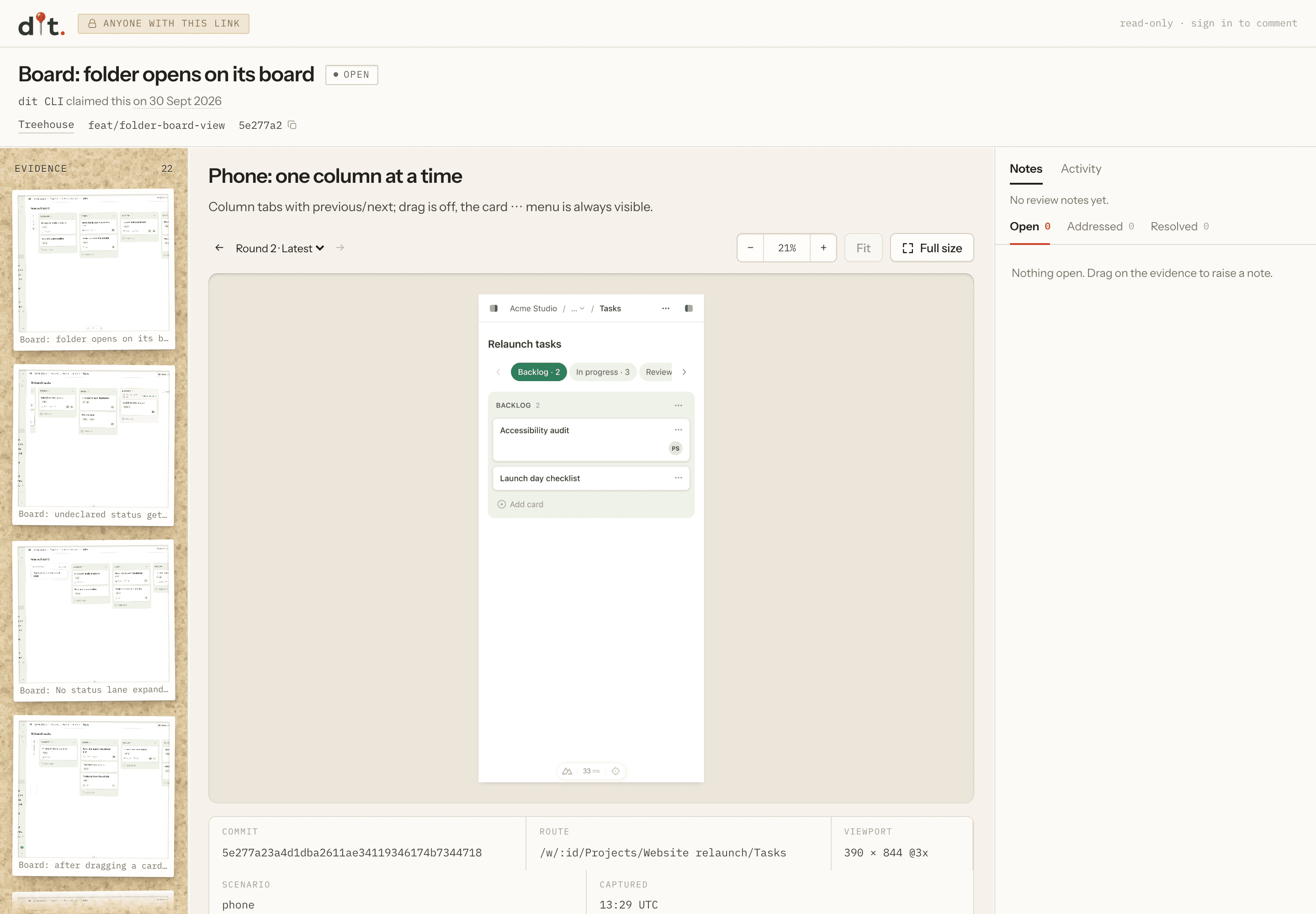
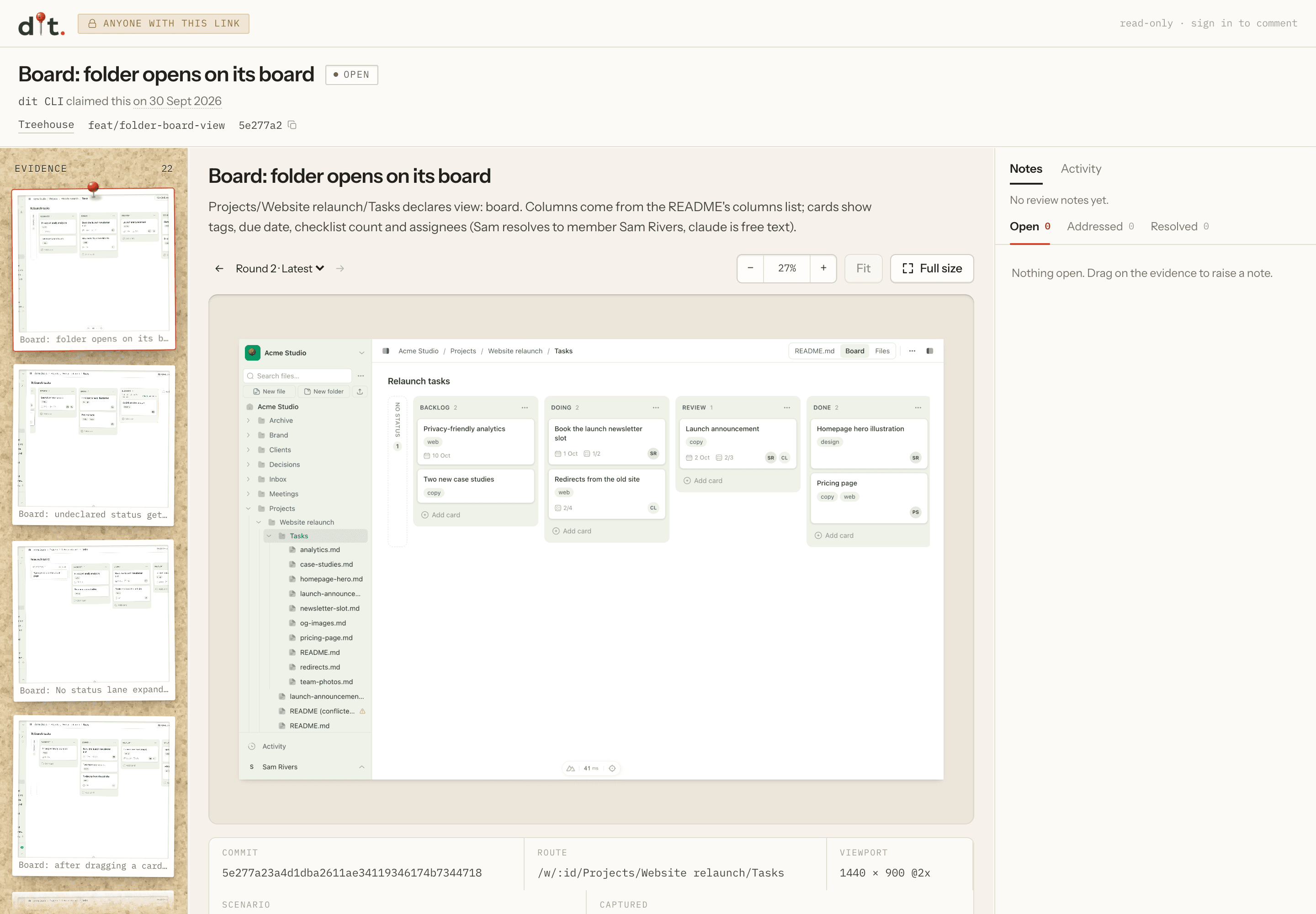
Here's what that looks like on a change to Treehouse, the workspace we run our client portals in. The agent uploaded 22 captures for one feature, desktop and phone, and each one carries the commit, route and viewport it was taken at.
 Desktop and phone captures in the same review, each labelled with its viewport.
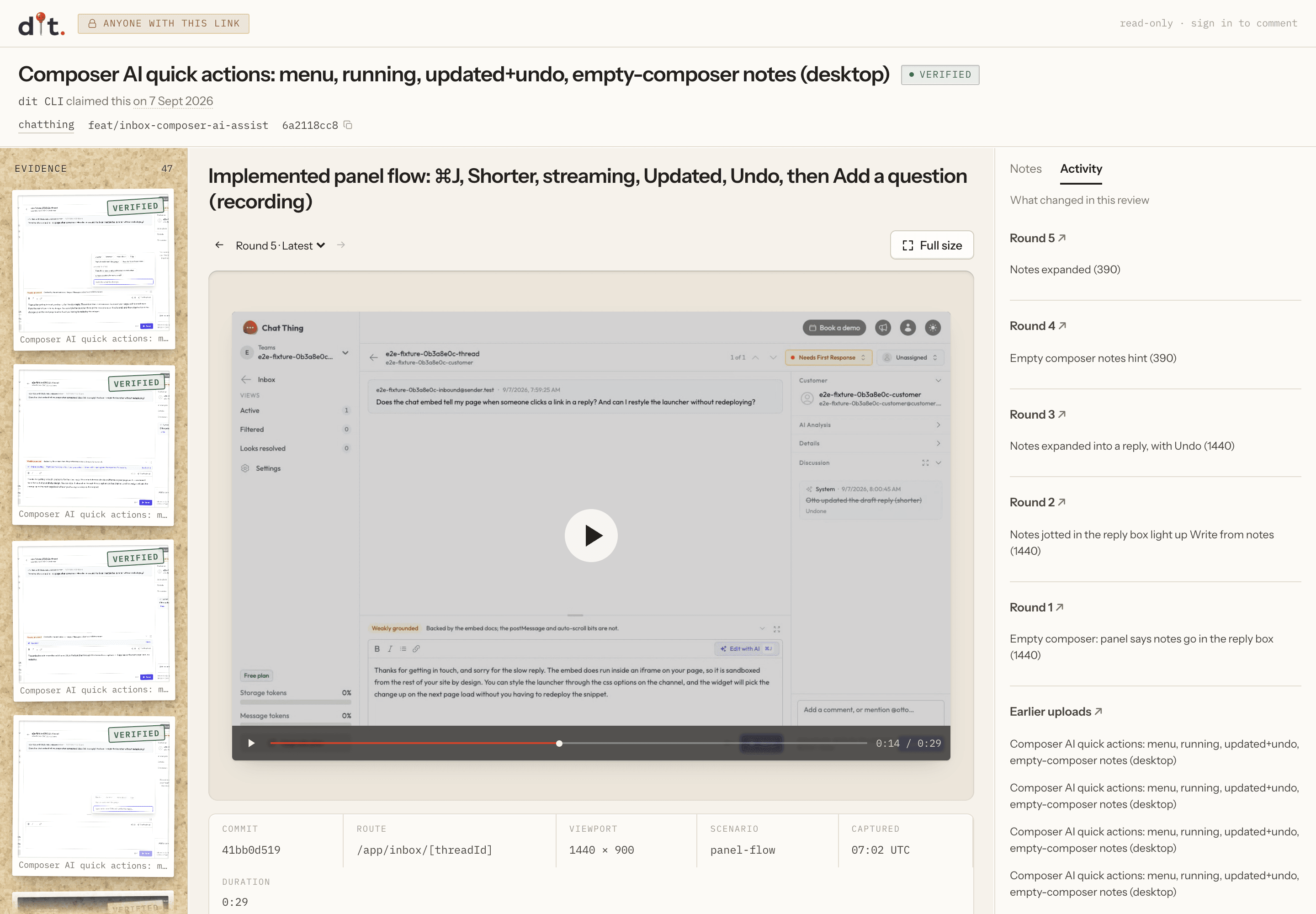
Screenshots won't tell you whether every interaction works, which is why flows get a recording. Watching the steps catches a sheet that jumps or a spinner that never stops.
 A 29-second recording of a Chat Thing flow, uploaded by the agent alongside its screenshots.
How the agent takes its own screenshots
The agent captures the evidence with its own browser tools. We generally use agent-browser, a browser automation CLI for AI agents from Vercel Labs. The agent starts the dev server, opens each route it changed, sets the viewport and takes the screenshots, and it can record a video while it clicks through a flow. A desktop capture of a changed page looks like this:
agent-browser open http://localhost:3000/checkout
agent-browser set viewport 1440 900 2
agent-browser screenshot ./shots/checkout-desktop.png
Because it's a CLI, any coding agent that can run terminal commands can use it. If you'd rather give Claude Code a browser through MCP, Chrome DevTools MCP and Playwright MCP do the same job.
These tools have been around for a while. We write the capture step into the agent's instructions as part of the task, so nobody has to remember to ask for it at the end.
Make the agent check its own captures
This step makes the biggest difference to quality, and it's one line of instructions. Before uploading anything, the agent has to open each capture and look at it. If text is clipped, elements overlap, the screen is in the wrong state or there's an error showing, it fixes the problem and captures again.
Agents are much better at spotting a problem in a screenshot than predicting it from the code. Taking the screenshot makes it look, and that catches clipped labels, broken layouts and missing elements that would otherwise have reached us in review.
Put the evidence in the pull request
Once the agent has its captures, they need to go somewhere you'll actually see them. Committing a folder of PNGs to the repo every time an agent touches a button gets old quickly.
So we built Did It Though?. The agent uploads its screenshots and recordings with a small CLI and gets back Markdown to paste into the pull request description. You see what it built in the same place you review the code, and the media stays out of your Git history.
Each upload lands in a review with the branch and commit it came from, so you can open the screens at full size without checking out the branch.
 The agent describes what each capture shows, and the review records where it came from.
Point at what needs fixing
When something's wrong, you annotate the screenshot with a pin, rectangle or arrow and leave a note. On a recording, you attach the note to the moment it happens.
Then you tell the agent you've left feedback. It reads the notes as structured JSON, with the coordinates of what you drew or the video timestamp attached, so it knows which button or which moment you meant. You don't have to describe the problem all over again in chat.
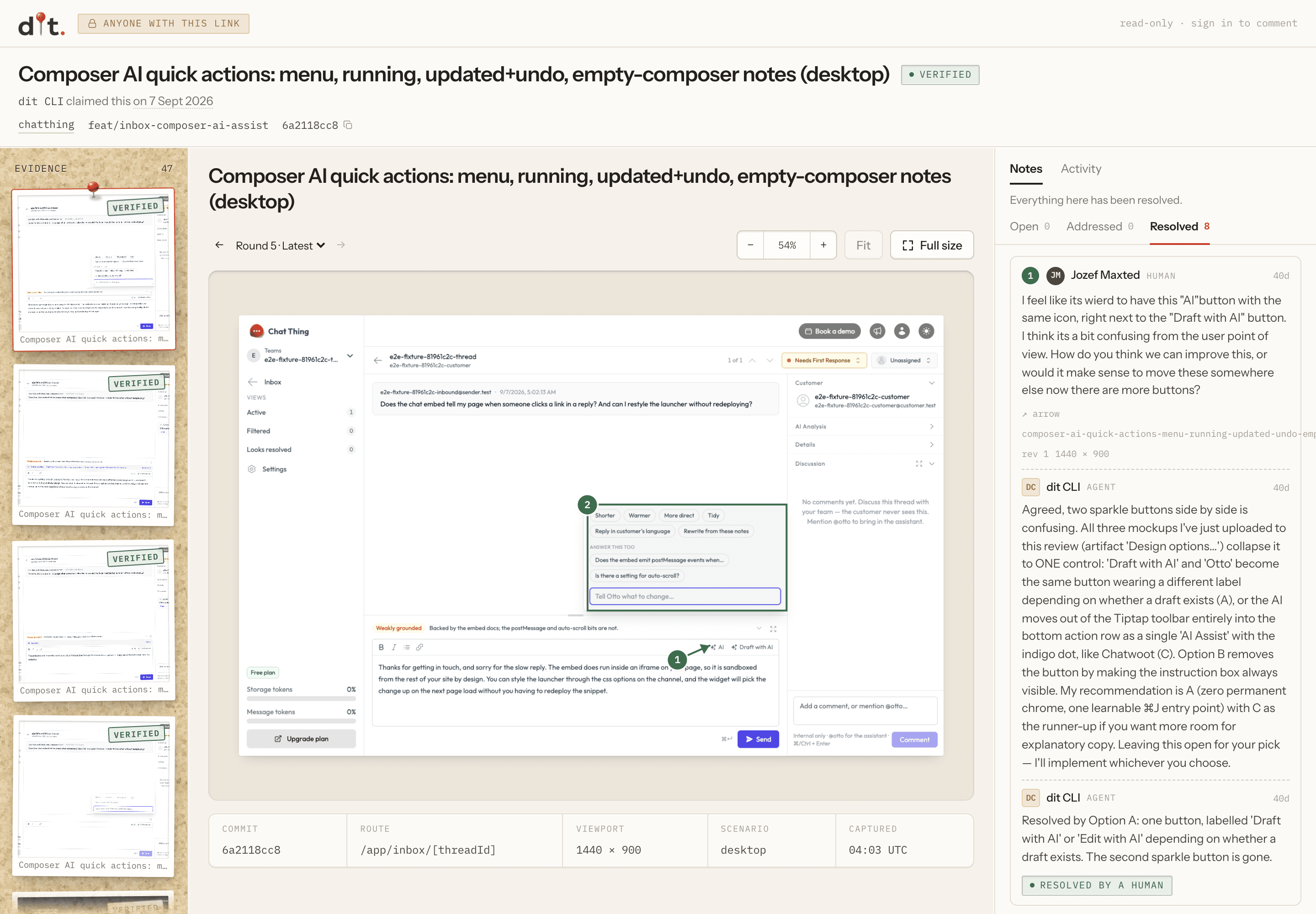
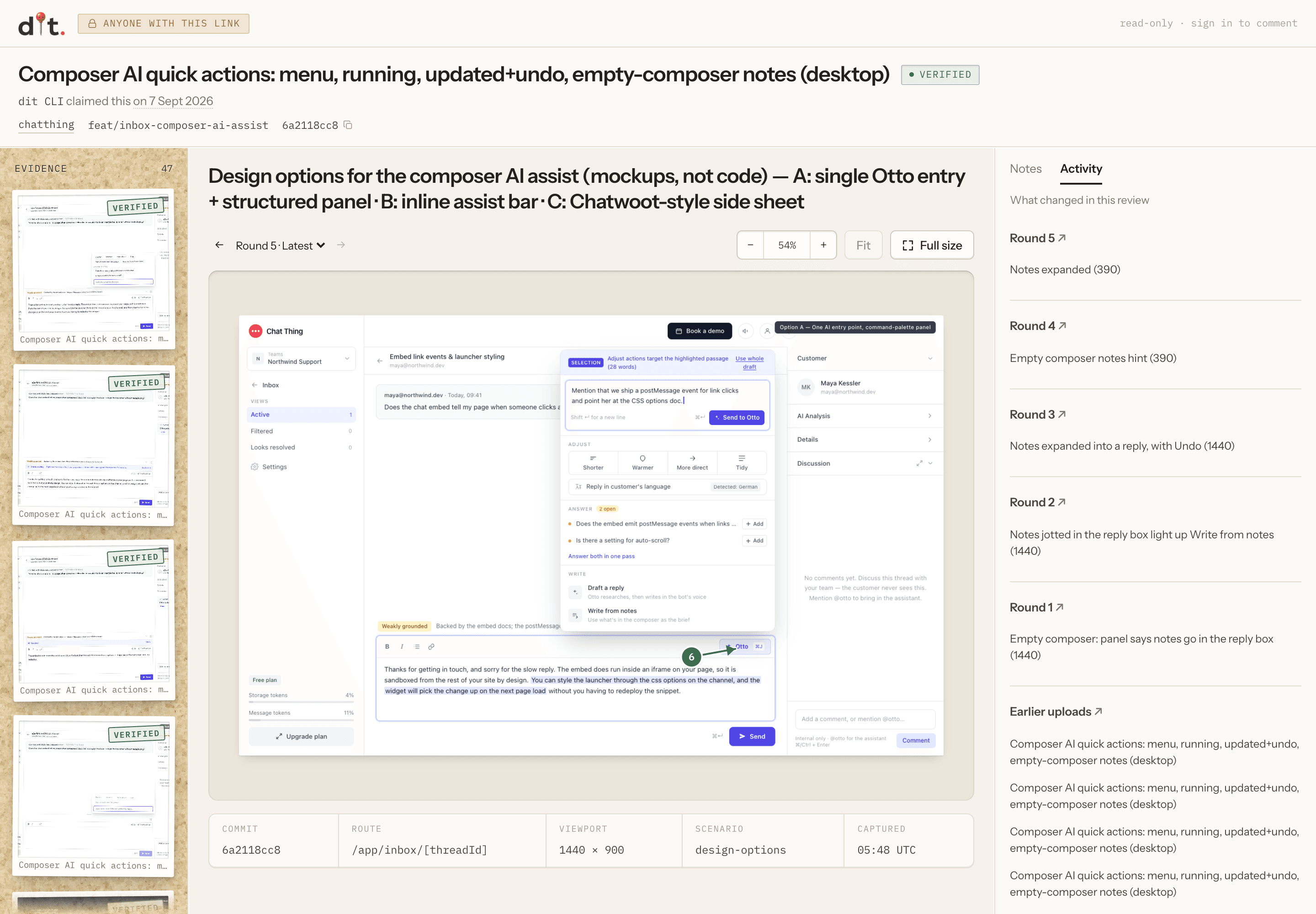
Here's a real one from Chat Thing, our AI agent platform. The agent had added AI quick actions to the inbox reply box, the kind of AI feature in an existing product we build for clients. I drew an arrow at a new "AI" button sitting right next to the existing "Draft with AI" button, because two sparkle buttons side by side were confusing. I also boxed the popover and said it felt unpolished, with a row of chips and no hierarchy.
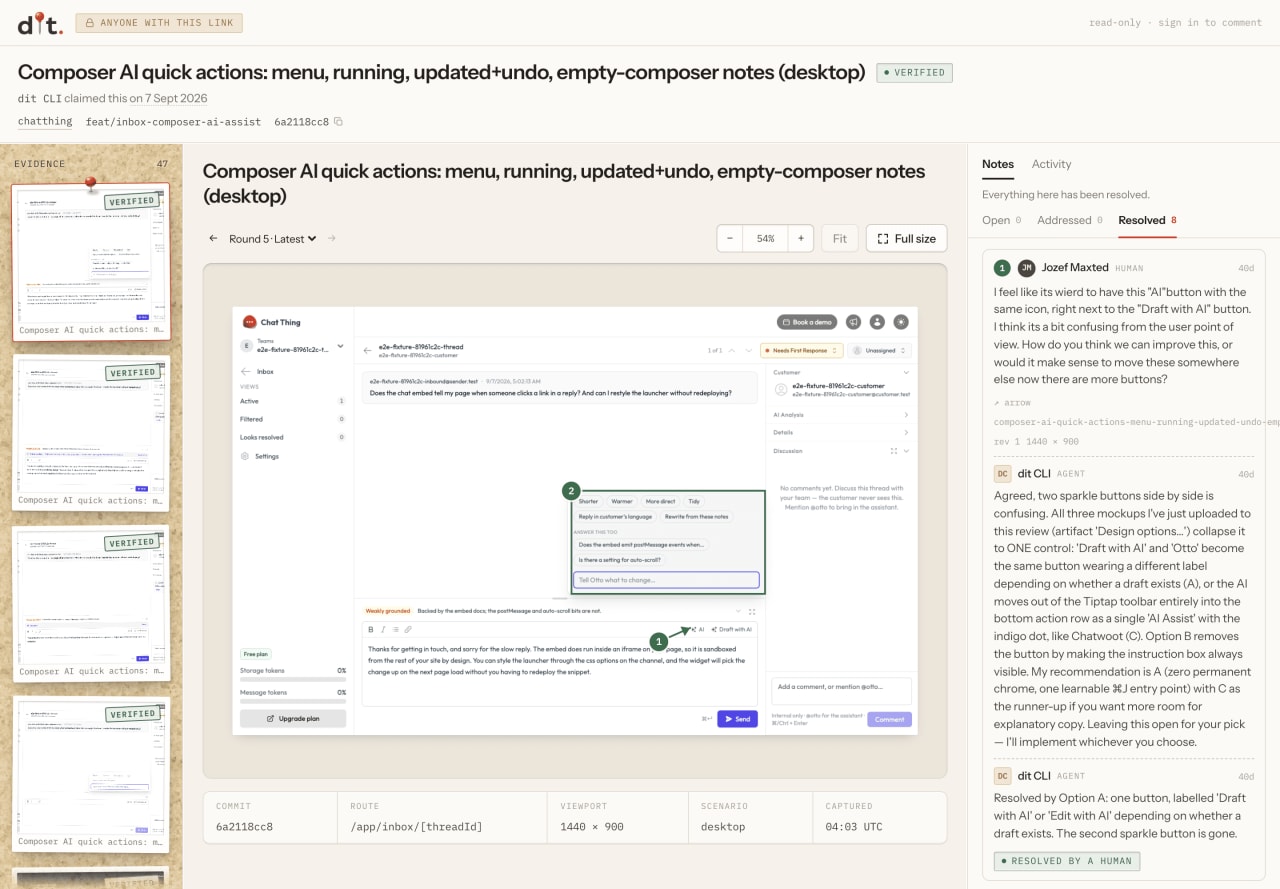 My note, the agent's replies and the resolution, attached to the part of the screen I pointed at.
The agent agreed in its reply, uploaded three design options to the same review and recommended option A.
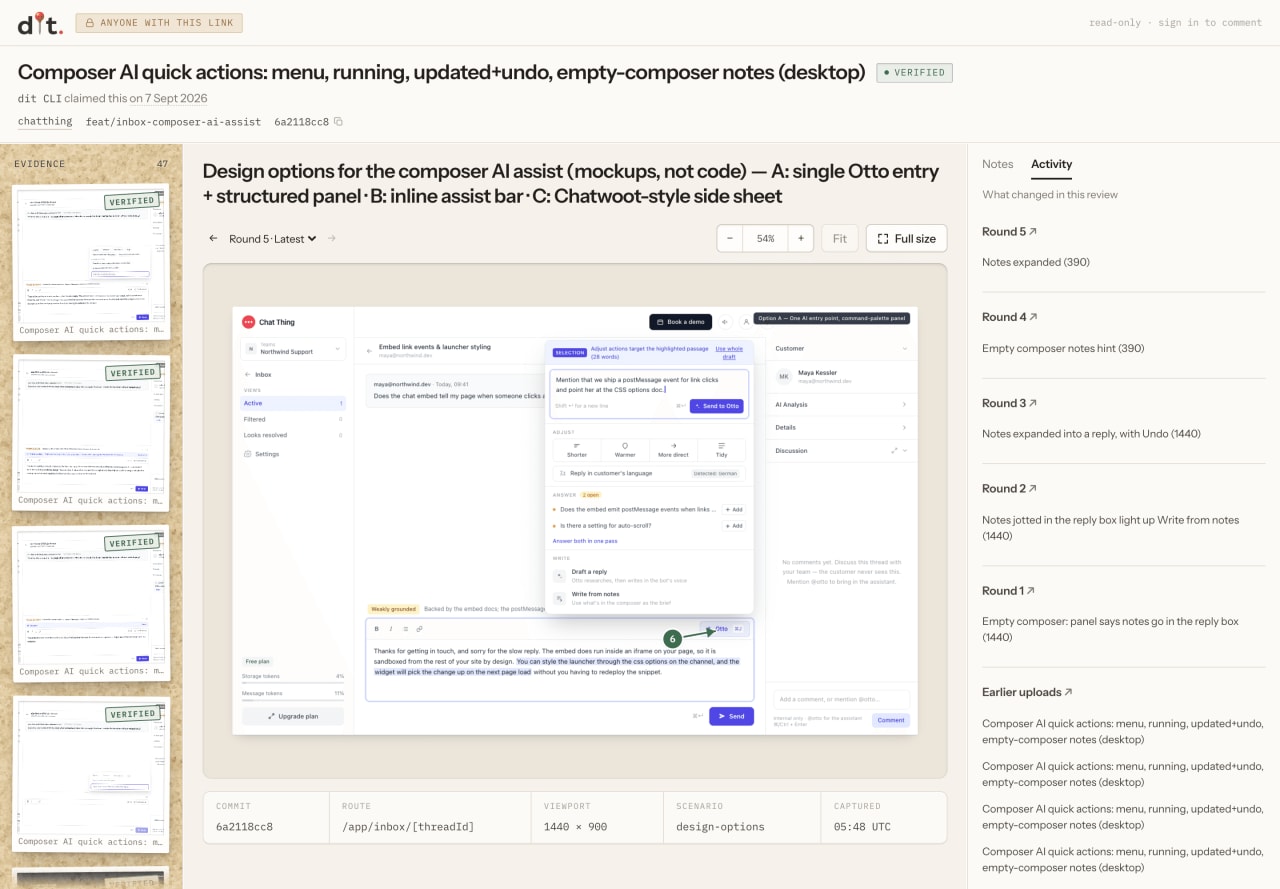 Option A, one of the three mockups the agent uploaded in response to the notes.
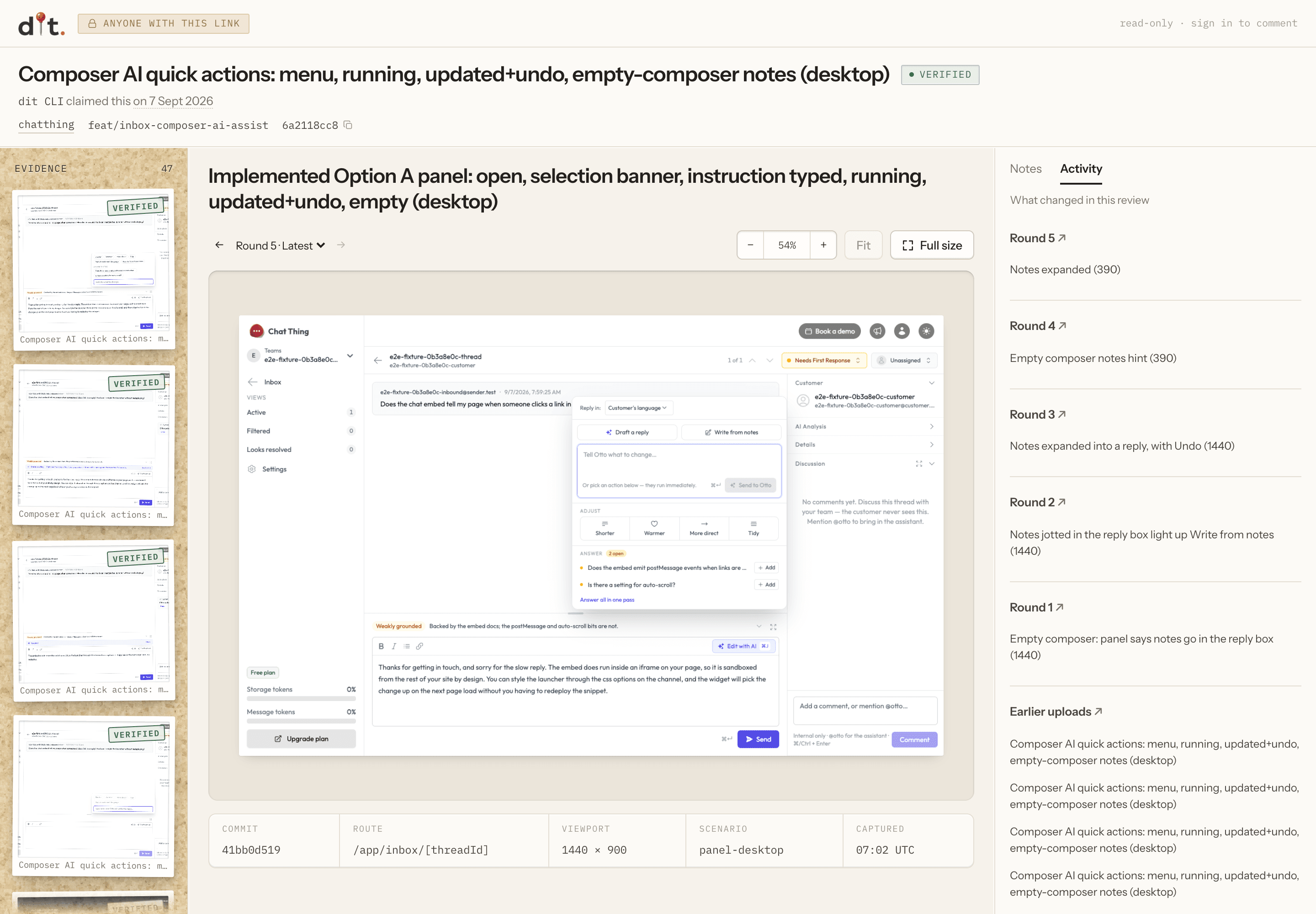
We went with option A. The agent built it, uploaded the new screens, replied to say what had changed and marked the notes addressed. Only a person can resolve a note and verify the review. As the Did It Though? homepage puts it, "an agent can upload and it can reply, but it can never stamp its own work." We kept verification human on purpose, because the whole point of the workflow is that a person has looked at the result.
Check what changed between revisions
Agent-built UI often takes a few rounds. The review keeps the earlier evidence next to each new version, so you can go back through the iterations and check that fixing one thing didn't break another. The Chat Thing review ran to five rounds and 47 pieces of evidence before it was verified.
 The built version of option A, with every round of the review listed alongside it.
Add visual verification to your CLAUDE.md or AGENTS.md
You can run the whole workflow from your agent's instructions. This is a shorter version of our setup prompt. Put it in CLAUDE.md for Claude Code, or in AGENTS.md for Codex and other agents that read it.
## Visual evidence

Never tell me a visible change is done. Show me.

- For every route you change, capture screenshots at 390px and 1440px wide with your browser tools (we use `agent-browser`).
- For an interactive flow, also record a short walkthrough. Never present screenshots as a recording.
- Look at every capture before you upload it. If text is clipped, elements overlap, the state is wrong or an error is showing, fix it and capture again.
- Upload the evidence with the Did It Though? CLI (`npx @pixelhop/dit upload`) and put the Markdown from `npx @pixelhop/dit markdown` in the pull request description.
- If you're not logged in, ask me to approve `npx @pixelhop/dit login` in my browser. Never ask for a token in chat.
- When I say I've left feedback, read it with `npx @pixelhop/dit feedback --json`, fix what each note points at, upload a revision, reply to the note and mark it addressed.
- Only I resolve notes and verify a review. No open notes does not mean verified.
- Never upload customer data, secrets or anything unrelated to the change.
The CLI is @pixelhop/dit (version 0.4.0 at the time of writing) and it needs Node 22 or later. The developer docs cover the full command set and the HTTP API if your agent would rather call that directly. Keep tokens and review links out of instruction files.
Where it doesn't help
You still need your tests. A screenshot tells you what a screen looked like when the agent captured it, and nothing about the code behind it. An agent can still capture the wrong state or skip a route it didn't think it had touched, so you still need to know what the change should affect.
It also adds time and tokens to every UI task, because the agent has to run the app, capture the screens and look at them. For us that's an easy trade, since the alternative is a person doing the same checks by hand.
Try it on your next UI change
Did It Though? is in early access, with a free plan and a $49/month Team plan. Start free, copy the setup prompt from the homepage into your coding agent and ask it to include visual evidence with its next change. We'd love to hear how it fits into your workflow.
Did It Though? sits alongside Chat Thing on our products page. It's how we build our own products now, and how we build AI products and apps for clients. If you'd like a team that works this way on your project, tell us about it. 🐰